Showing posts with label ipad. Show all posts

How To Update Your iPhone and iPad to iOS 10


iOS 10 is here! Here is how to update your device and get all those new features! 

The first things you'll want to do before updating your iPhone or iPad is to back it up! Why risk losing your data?! Things do sometimes go wrong and you may need to restore your iDevice from a backup. So... BACKUP FIRST!

If you have an iCloud backup that backs up everything, that's great, but if do you have a PC or Mac, I'd still strongly recommend backing up your device in iTunes.

Now, if you've never connected your device to iTunes before, check out this link to the Apple guide on backing up your device, first.

To backup your device and then update to the latest version of iOS, simply:


1. Plug your iPhone or iPad into your computer, then open the iTunes application.


2. Select your iPhone or iPad when it appears in iTunes.

If you want to backup your Health and Activity data, you will need to encrypt your backup.


3. Then, simply click, "Back Up Now" and wait for the backup to complete.

4. Next, you could update your device in iTunes by clicking "Check For Update", or you can eject your device and perform the update over the air!

On your iPhone or iPad, open the 'Setting' app.


Then tap 'General'.


Then 'Software Update', and follow the prompts.
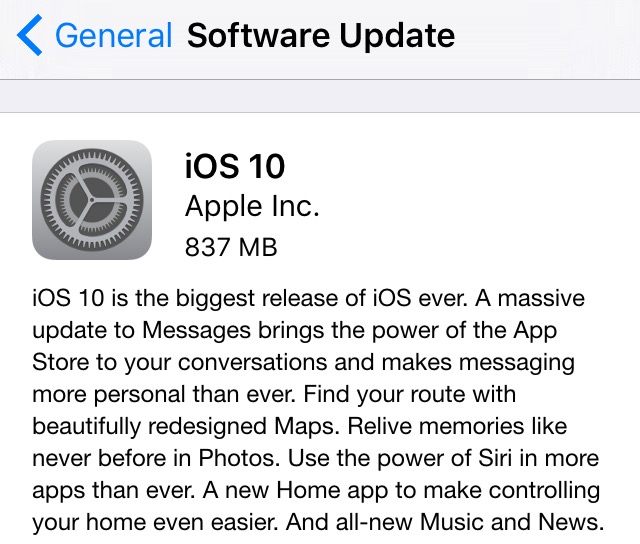


Your device will download the update, then begin to install. Wait for it to complete and then you are all set and will be running the latest version of iOS!


Unboxing the iPad Pro 9.7 Inch in Space-Gray


A quick unboxing of the brand new iPad Pro 9.7 inch in Space-Gray. Stay tuned for a full review and comparison video to the iPad Air 2 in the coming days! Subscribe to our YouTube channel to stay updated!

How To Password Protect Notes in iOS 9.3 on iPhone or iPad

A new feature in iOS 9.3 is the ability to password protect your Notes. This password is not linked to your iOS passcode that you use to unlock your device, however you could always use the same pin I guess, if you're worried about forgetting the password. The password you set will be the same for all notes that you choose to lock. 

How To Password Protect Notes in iOS 9.3:

1. Open the Notes app. 

2. Create a new note, or find an existing one. 


3. Now, on the note you wish to lock, tap the Share button.

4. Now tap, "Lock Note."


5. Enter a password and choose whether or not to also allow Touch ID to unlock, and tap "Done". Important! if you forget the password - you will lose access to the note! 


6.  Now tap the lock symbol to lock the note. One thing to keep in mind is, the notes heading or first line will still be visible. 

7. To view a locked note, tap the note, then "View Note", and unlock.


8. To Remove a lock, tap the Share button, then "Remove Lock". 


How To Reset Your Notes Password in iOS 9.3:

1. Open Settings app.  

2. Tap "Notes."

3. Tap "Password".

4. If you remember the previous password, you can choose to "Change Password" or you can choose, "Reset Password". *Note: you can reset the password, however previous locked notes will remain locked with the previous password. 

5. To reset or remove password from future notes, tap "Reset Password." 

6. Enter you devices passcode. 

7. Confirm Reset.

8. If you don't want to set a new password, simple press "Cancel" on the 'Set Password' screen.


How To Stop iOS OTA Update Once Started on iPhone or iPad

If you start an iOS over-the-air update, that is, a update straight from your iPhone or iPad, from Settings > Software Update, and then need to stop the update before it's done downloading - follow these steps: 

1. Open "Settings" app.  

2. Tap "General." 


3. Tap "Storage & iCloud Usage." 


4. Under Storage heading, tap "Manage Storage."  


5. A list will populate. Find "iOS X.X" on the list, and tap on it. 


6. Now, tap "Delete Update", then again on the pop-up menu to confirm. 

7. To re-download the update, go back to Settings > General > Software Update.    


What Apple Announced Today (March 21st Apple Event)

Apple held a Media Event today in Cupertino.  Here are my live key notes of what was announced!

For full details, be sure to check Apple.com

--

40 years in 40 seconds video plays. Apple turns 40 on April 1st 2016.

Tim Cook talks about privacy and encryption.

Lisa Jackson, head of environment on stage. Talks about Apple's goal to become 100% renewable. At the moment 93% of Apple offices run on renewable energy. Also talks about recycling and reusing iPhone's.

Health: Jeff Williams talks about ResearchKit.
Apple launching CareKit - available in April.

Apple Watch: Top selling smartwatch in the world. New Apple Watch bands! Woven Nylon. Apple Watch price drops to starting from $299.

Apple TV: Talk about apps. tvOS - update: folders, photo library & live photos,  dictation, Siri for App Store. tvOS 9.2 available today.

iPhone: New 4-inch. Called iPhone SE. Includes Rose Gold finish color option. Looks like iPhone 5s. A9 64-bit chip, M9 co-processor. Same CPU performance as iPhone 6s. 12-megapixel iSight Camera. Battery improvements. Includes features like Live Photos and Retina Flash. Capture 4K video. Touch ID. Price starts from $399 (16GB). Orders from March 24th - available March 31st.

iOS 9.3: new Night Shift color mode to make screen warmer looking which might make you sleep better at night. Notes: Passcode protect. Heath: app suggestions. Top stories in News. Apple Music in Car Play. iPad in the classroom improvements in iOS 9.3. iOS 9.3 available today!

iPad: Customers love the iPad Pro. New 9.7 inch iPad Pro! 40% less reflective. 25% brighter than iPad Air 2. 25% greater color saturation. True color tone display. 4-speakers. Twice volume of iPad Air 2. A9X 64-bit chip. M9 co-processor. Smart keyboard for 9.7 inch display. Pencil. Other accessories include: Lightning SD card reader, USB Camera reader. 12 megapixel iSight camera. 4K video recording. True tone flash on iPad! Live photos. Now also in Rose Gold. $599 for 32GB, $749 - 128GB, $899 - 256GB (New option) - Wi-Fi models. Order from March 24, ships on March 31.


How To Watch Today's Apple Keynote Event Live!


Apple is holding a media event today (March 21st) at 10 a.m. PDT. 

It's been rumored that Apple will announce a new smaller size 4-inch-iPhone with the internals of an iPhone 6 or 6s. A new 9.7 inch iPad Pro. Possibly new Apple Watch bands, and possibly the release of iOS 9.3. 

Apple will live stream the event from their website and on Apple TV. Check Apple's Event page for more details


Apple To Hold Media Event On March 21st


Apple has sent out invites for a March 21st event in Cupertino. The invite features the tag line "Let us loop you in", with an Apple logo background image in their device colors of Silver, Space Gray, Gold, and Rose Gold.

It has been rumored that Apple will announce the new iPhone SE; a 4-inch iPhone with the abilities of the iPhone 6s in a smaller case.

A new 9.7 inch iPad, which may pack all the features of the iPad Pro in the smaller shell.

New Apple Watch bands.

iOS 9.3 and possible more...

The Keynote event, which will also be lived streamed via Apple's website and on Apple TV, begins at 10 a.m. PDT on March 21st.

> View Apple Events webpage.


'Futurama: Game Of Drones' Now Available on App Store & Google Play

Good news everyone! Futurama is back ...as a game on Android and iOS!


Now available in the App Store and Google Play store, Futurama Game of Drones sees the Planet Express crew back in action,  this time delivering drones in a match-4 style game.

Much like other match type games like Candy Crush, Bejeweled, etc... In Futurama: Game of Drones, you have different colored drones to match in a minimum of 4, matching a required number of certain colors to move onto the next stage.

As added extras, there is also power ups, and special items added in the grid for bigger matching effects.

As the story progresses, you can also play with your favorite characters from the TV Show, including; Fry, Bender, Leela, Amy, Zapp, and the Professor.

But the most fun and best parts, to me, of this game are the story cut scene animated comics and 3D world menus.

To get a better idea of the game play, check out the game trailer below.


American Football iOS Game 'Touchdown Hero' App Review


Touchdown Hero by cherrypick games is a light, fun, and yet challenging, American Football game for iPhone and iPad.

Touchdown Hero is a endless runner style game  where you are a one-man team dodging the opposition team as you run the field scoring touchdowns every few meters. The goal, last as long as you can and score as many touchdowns as you can.

Touchdown Hero features an old school pixeled graphic birds-eye-view camera angle, different colored uniforms to unlock and collect, different playing fields and weather conditions, a slow-motion feature where you can think of strategy while pretending that you can slow down time, and a new 'King of the Rings' game mode where your aim is to collect rings on the field while dodging your opponents.

Touchdown Hero is FREE to download (features in-app purchases and advertisements) for iOS devices (iPhone, iPod touch and iPad) from the App Store.


Australian 9Jumpin Becomes 9Now on App Store


The Australian Television Channel 9 app has gotten an upgrade and a new name today. 9Jumpin is now 9Now.

9Now is a online live streaming and on-demand app. You can watch Channel 9 live, or catch up on shows after they are aired.  You can access 9Now from your phone, tablet, computer, or TV.

So you can watch a range of shows on-demand, and Channel 9 live, with other Channel 9 networks like 9Go and 9Life coming soon.

The video quality seems good and adjusts with your internets connection speed. Note, you may want to make sure you switch on the option "Play on WiFi Only" in the settings, unless you have an awesome mobile data plan.

Now the downsides of the app. To watch anything, you'll need to create an account with 9Now. Also, there is no AirPlay option. And there are advertisements, of course, but that's to be expected, however unlike a recording on a DVR, you can't skip these ads. Other than that, the app seems okay so far.

The 9Now app is FREE to download for iOS (iPhone & iPad) and Android. You can also access 9Now from the web at https://www.9now.com.au


Best Instagram App For iPad - Flow for Instagram - App Review


It's 2016 and can you believe that Instagram still doesn't have an app for the iPad?! They seem to be focused on mobile only � but the iPad does make for a great viewing platform. But it doesn't matter, because if all you want to do is view photos and videos from Instagram on your iPad, there is a great third-party-app available.

'Flow for Instagram' by Codegent Bangkok, is what the iPad app of Instagram should be. Works in both landscape and portrait, Flow features Instagram pictures nicely laid out in a scrollable grid.

Tap a picture to enlarge and show other details that you'd expect like likes and comments. You can even zoom in on pictures by pinching and share, send, or even save to your camera roll* (requires paid version of app).


The main layout of Flow features buttons for:

- Home: the photos and videos from who you follow.
- Your Likes: the pics/videos you've liked.
- Favorites: your bookmarked users, tags, and places.
- Suggested/top pics: like the explore posts on Instagram.
- And Search: where you can search for users, tags, and places.

You also have easy access to other Instagram features like viewing complete pages of who you are following, your followers, requests, search, etc...

In the upgraded paid version (Flow+) you can choose between a light or dark theme for the app. *comes with dark theme - must upgrade for light theme. Also add multiple accounts, hide users posts, get a extended home feed, save pictures and videos and more.

Because this is a third-party-app, you cannot upload images from to Instagram from Flow. But, this app does makes for a great way to view your Instagram feed on your iPad.

Flow for Instagram is available to download for free (with a paid "Plus+" version available through in-app purchase) for iPhone and iPad - from the App Store.

Apple's iOS Autocorrect Suggests "Kardashian" for "Lardass"


Apple has a little hidden Easter egg joke in iOS apart of autocorrect. 

Seen by actress & fashion model, Lydia Hearst and Instagramed by television host Chris Hardwick, when first typing in the word "Lardass", the iOS autocorrect suggests the replacement word, "Kardashian". 

I tried it out for myself - and yep - this is real! Not that I'd doubt Chris Hardwick or Lydia Hearst. However after typing the word "Lardass" the "Kardashian" suggestion doesn't appear anymore. It may be a one off joke. 

Try it out for yourself! 


Apple Releases iOS 9.2 Update With Improvements & Bug Fixes

Apple has today released iOS 9.2 update for iPhone's, iPad's... Included in this update is various improvements and bug fixes including: improvements for Apple Music, a new Top Stories in News, and Mail Drop in Mail for large attachments. 

Before updating, remember to backup your iOS device to iTunes or at least iCloud! Then you can update over-the-air on Wi-Fi by going to: Setting > General > Software Update on your iOS device. Or you can also update through iTunes with your device connected to your computer.   

'Power Rangers Dash' Adds Megaforce Rangers To Game


If you had finished collecting Power Rangers in the iOS and Android game, 'Saban's Power Rangers Dash', you now have a few more to go back in and collect. In a recent update, the game has added the six 'Power Rangers Megaforce' Rangers!

Here's a tip to collect the new Megaforce Rangers - go the the store and buy with "Purchase by Point" for 100P each - then when asked which season you'd like the Ranger from, choose 'Megaforce'.

Power Rangers Dash now features nine different seasons of Power Rangers, including; Mighty Morphin (minus the White Tiger Ranger), Wild Force, S.P.D., Mystic Force, Operation Overdrive, RPM, Samurai, and the latest team, Power Rangers Dino Charge. Here's still hoping they add some of the other classic seasons like; Dino Thunder, Zeo, Time Force, and In Space - to name a few.  

Power Rangers Dash is FREE to download from the iOS App Store and Android Google Play Store. 


Pocket Weather AU for iOS Gets Disappointing Redesign Plus Apple Watch App


Pocket Weather Australia by ShiftyJelly PTY LTD has long been a favorite weather app for Australians. It was just recently updated with a totally new redesign, along with the new much anticipated Apple Watch app. But wait! Users who haven't updated yet, may not want to hit that button too quickly. This update has left some users not too happy with the change and for what I think is good reasons. 

If you use Pocket Weather Australia, you'll know the app for its great design and more accurate weather information (than the stock iOS app) - right down to your local suburb. The app was designed for both iPhone and iPad, and used the real-estate advantages. The same can't be said for all of its previous positives in this latest update.

Gone is the great graphical weather images for a very minimal design, with a lot of white space and very basic weather icons. The new design also feels less intuitive - even with its very simple Google looking card system. Like tapping the today section card will open more in-depth information, however there is no indicator of this feature. There are also inconsistencies that don't make a lot of sense - like rounded up/down weather temperatures and showing the 'correct value' in different areas. I also experienced crashes and freezing while performing simple actions like adding a city or trying to load the weather.

The iPad app is also a let down compared to its previous version. Before the iPad made use of the larger display, however now, it's basically the same exact iPhone app on a larger plain background. It's clear that this redesigned version has taken design cues from Google, over Apple. 

On thing that many people were waiting for was a Apple Watch app to replace the  usually incorrect iOS weather app. But this app has its let downs too. While there is a complication you can add to the Watch face, it will not show the current live temperature - instead it'll show the days max and condition. Tapping the complication will take you to the Pocket Weather Australia Apple Watch app. 

The Watch app shows some more useful information for when you're on the go, like; current temperature, the day's predicted high and low, and the weeks temperature overview. Missing info that would be useful is; the Feels Like temperature, hourly/upcoming rain info, ability to switch through different cities/towns and a reload button for when the app fails to refresh, which in my experience, happens -  there has definitely been some updating issues. 

While it's still the same great app that pulls weather information from the Bureau of Meteorology, maybe with a few issues or bugs, this version feels a lot like a step backwards. Honestly, a hybrid of the before and after, I think, would look a lot better. Bring back the old weather graphics for the header, keep the simple new interface maybe with some adjustments and make better use of the iPad's larger screen size. 

Pocket Weather Australia is priced at AU$2.99 in the App Store. The new redesign and Apple Watch app update is free for existing users. 


Surreal 3D Exploration Game 'Monument Valley' Currently FREE On App Store


This is one app that you won't want to miss out on - if you haven't already bought this game - now's the time to download it for free! 

Monument Valley, down from it's usual price of $3.99, features stunningly beautiful hand-crafted graphics in it's 3D surreal world.

The goal is to guide princess Ida though the mysterious monuments, while uncovering hidden paths, optical illusions, and outsmarting the Crow People. 

Monument Valley is also Apple's 2014 Game of the Year, and Winner of Apple's 2014 Design Award. 

Advent Calendar for iOS - 2015 Christmas Apps

It's December and Christmas is just around the corner! Which means - it's time for Christmas apps! What better way to start the countdown than with an advent calendar app!

25 Days of Christmas - Holiday Advent Calendar 2015
By appChocolate


An advent calendar is a countdown calendar with doors that you open - one-each-day. Most commonly, physical advent calendars features a gift, mostly chocolate, inside. In an iOS modern fashion - 25 Days of Christmas - features digital gifts.

In 25 Days of Christmas, you get a quick mini-game to play each day and a special 'gift', which seems to basically be an advertisement for an app that's available for free on the App Store.

The simple mini-games are anything Christmas themed from snowball fights with elves, to breaking and eating a Christmas cookie, to decorating Christmas trees.

25 Days of Christmas - Holiday Advent Calendar 2015 is designed for both iPhone and iPad and is available for FREE on the App Store. [View on App Store]


Pop Dash - Music Runner Combines Love of Pop Music & Running Games - iOS


Pop Dash - Music Runner by Maximum Play, combines your love of pop music and playing games on your iPhone, iPod Touch or iPad.

Pop Dash - Music Runner dives into the pop-culture world with wild themed levels in this running game. The game is divided into levels - so while you can run endlessly, you are aiming for three stars to achieve by meeting different level objectives on each level.

While playing the game - music plays that you can groove too by pop artists like; Lindsey Stirling, Ariana Grande, Nicki Minaj, Jessie J, Wiz Khalifa, Becky G, Echosmith, DVBBS, Art vs Science, MARRS, Jo Li, Betty Who, and more...

The gameplay also combines swiping in all directions and a bit of a Guitar Hero feel with buttons on the road to hit with certain actions - however the buttons don't effect the music.

Playing is limited by energy that re-charges over time. The energy count is 5 (plays). Energy can be re-charged using Crystals - the rarer in-game currency.

Players can purchase, using the in-game coins, different players and costumes. Players can also choose to play as American violinist, dancer, performance artist, singer and composer, Lindsey Stirling!

From the musical pop-culture world themes and graphics, to the layback casual gameplay feel, and the pop background music, Pop Dash - Music Runner is a great game to play for some fun and to just chill too.

Pop Dash - Music Runner is FREE (with in-app purchases available) to download for iOS devices.

> Go to Pop Dash - Music Runner on the iTunes App Store.  


YouTube Kids App Now Available Internationally on iOS & Android


Google has today released it's YouTube Kids app internationally for certain countries outside the U.S.A. at the moment including; the UK, Ireland and Australia. YouTube Kids launched in the USA nine months ago.

YouTube Kids is a free app, designed for kids aged 5 and under. The app is designed to exclude content that may not be appropriate for a young audience - however YouTube notes that not all videos are manually reviewed.

When setting up at app, parents can choose whether they want to allow search. If you allow search, kids can search through millions of videos on YouTube (with restrictions). With search off, only the videos on the apps home screen and recommendations will be shown. However the security that keeps search off is four written numbers that the apps asks you to type in. So, if your kid can read numbers...  

The app is divided into four sections: Shows, Music, Learning, and Explore. Videos that can be expected on the app are favorites like; Thomas & Friends, Hi-5, Banana's in Pajamas, Sesame Street and more.

Also it's important to note that this app is not advertisement free. YouTube writes that the app "...contains paid ads in order to offer the app for free. Your child may also see videos with commercial content from YouTube creators that are not paid ads."

> View YouTube Kids app on the iTunes App Store


How to Load Website without Content Blockers in iOS 9


Installed a Content Blocker and noticed a website doesn't seem to be working correctly? Content Blockers usually load most sites fine - but as they are 'Content Blockers', some things on the site will be missing - mostly, ads. Content Blockers could break a website.

Luckily, there is a quick way to disable Content Blockers and reload the webpage. To do this, hold down the Reload button in Safari, then two options will appear: "Request Desktop Site" and "Reload Without Content Blockers". Tap the latter to reload the webpage in its entirety.

> Learn how to set up Content Blockers in iOS 9 for iPhone and iPad.


Featured Post

How To Update Your iPhone and iPad to iOS 10

iOS 10 is here! Here is how to update your device and get all those new features!  The first things you'll want to do before upda...