Best TV Guide iOS App For Australia - OzTV

UPDATE (July 6th 2016): Unfortunately, OzTV is no longer available... 

Australian's, the TV guide and 'second-screen' iOS app, Beamly, (previously known as Zeebox) is shutting down after being purchased by beauty products company, Coty, Inc.

In my opinion, Beamly, started out as a great TV Guide, but overtime got to complex with adding too many social and news elements to the app. So, the good news is, if what you wanted was a simple television guide app for your iPhone or iPad, then I know of a great, award-winning app which I think would be a great replacement. 


OzTV - TV Guide for Australia by OzTv Apps Pty Ltd, is optimized for iPhone and iPad, and even includes support for the Apple Watch.

OzTV features; a  7 Day Free-To-Air Guide. Rich Show Information with images and descriptions. Reminders - you can set alerts to remind you before a show begins. Favorites - star TV shows as your favorites and keep track with their own TV guide list and highlights on the main guide. View upcoming episodes, quick access to info on Wikipedia/IMDB.

You can also search for shows, see what others are watching with a top show list, check-ins, popular and friends sections. Also OzTV features a great and easy to use interface. And more... For a full feature list, check out it's App Store page.


If I was to nitpick with the app - it doesn't update the schedule live, like some TV guides on actual televisions - so if a program is running late - it wont show the updated schedule time. There's no option to set only alerts for new episodes of TV Shows - so if you want a weekly alert of new episodes of a show playing, you'll need to manually set this. But those are small things - more wishful thinking.

OzTV - TV Guide for Australia is FREE to download for iOS devices from the App Store.


> View OzTV on the App Store

5 Awesome Halloween Apps for iPhone & iPad!


Make A Zombie 2 
by Skunk Brothers GmbH

Mix and match items to create your very own custom zombie! All up, around 150 different pieces that come with the app for free to choose from to create your zombie.

There is also a in-app store where you can buy additional items to create your zombie. The packs include: Meme Pack, Christmas Pack, Halloween Pack, Action Pack, and Pet Pack.

Make A Zombie 2 is FREE (features in-app purchases) to download, available for iOS (iPhone / iPad / iPod touch) devices from the Apple App Store.  


Halloween Spooky Sound Box Free 
By Cookie Balloon.

A free Halloween soundboard app in my opinion, features 50 awesome spooky sound fx's including; Monster Roar, Freddy, Raven, Chainsaw, Bell Toll, Screams, Ghosts, Werewolf, "Get Out!", Wolf Howl, Zombies, Clown Laugh, Owl, Heartbeat, Witch, and many more.  

Paid version of the Halloween Spooky Sound Box app features 96+ sounds.


This halloween iOS app is filled with great education games for young preschool and kindergarten kids. Games included in this halloween app are: Pumpkin Maker, Tracing Letters, First Words, Memory Games, and Coloring Book.


The Impossible Test Halloween edition is a problem solving app featuring 30 unique Halloween questions that'll take hundreds of steps!


Sky Whale 
by Nickelodeon

In this game, control a Narwhal and keep it in the air by bouncing off items in the sky.

Features crazy collectable power-up items that flout in the sky or under the water to help your Narwhal. The game has recently received a Halloween themed makeover.


How To Reset iPhone To Factory Setting - iOS 9 Tips


Sometimes you may need to factory reset your iPhone. Whether it's because you are selling your iPhone, giving it to someone else, a last-resort to troubleshooting a problem, or you just want a fresh start - resetting is easy to do. But remember to backup your iPhone first - or you will lose all your data! 


To Factory Reset an iPhone:

1. Open the 'Settings' app. 

2. Tap 'General'. 

3. Scroll right down and tap 'Reset'. 

4. Here you have the option to reset all sorts of settings and data. If you want to delete everything, tap 'Erase All Content and Settings'. 


How To Delete Notifications On Apple Watch


When you miss a notification on Apple watch, a red dot will appear at the top of your watch face screen. Swipe down on your watch face to show all missed Notifications. There is also a few ways to clear the missed notifications on the Apple Watch.
 
1. Click and view the Notification. 

2. Swipe across the Notification to the left, then tap the Clear button. 

3. Or, to clear ALL Notifications, Force Touch the screen, then tap the 'Clear All' button.
 

Take Mini Looping Videos with Instagram's New App 'Boomerang'

Image Credit: Boomerang from Instagram
Instagram has released a new app today called, 'Boomerang from Instagram', which almost to me seems to be the Instagram answer to Apple's new iPhone 6S feature, 'Live Photos'.

Taking selfies or filming others, Boomerang takes 10 rapid photos and stitches them together to form a short 4 second looping back and forth video. For best results, Boomerang suggests you film moving objects with this app.

Once you have taken your Boomerang video, you can share it to Facebook or Instagram directly from within the app. It'll also be saved to your Camera Roll.

Some tech specs for those wondering: the saved video file is a .MOV using the H.264 codec at the resolution of full HD, 1080 x 1920.

> Go to: Boomerang from Instagram on the App Store. 


How To Store & Stream Your Music Library Online for Free

Google Music App Icon
In today's age, music is now all about streaming rather than buying. But some people still like to 'own' music and maybe already have an extensive library. But even when you have a hard-driver full of music, you still probably want them: 1 - backed up somewhere safe and 2 - able to access from all your smart-devices, including your iPhone, iPad, and Computer. But storing what may be gigs of data on these devices is just not practical and then you also might run into syncing issues.

It'd be simpler to have a copy / backup of all your music stored in a cloud somewhere - where you can pull down the files when you want them - from whatever device you are currently using. Apple does have iTunes Match. This service will match your iTunes library with songs on Apple's music collection and upload the songs that it doesn't match. This is a yearly paid service. This, with Apple's new music streaming service is pretty sweet. But, for this blog post - we are looking for a free service and don't care about streaming new music - we want to create a online library of our own collection. So since we are looking for a free option, this also rules out cloud services like Dropbox and Copy. But there is one service that will actually do exactly want we want - and for free.

Google Music.

Google Music offers streaming of their catalog of music, like Apple Music or Spotify, etc... Google Music's price for their streaming, standard "All Access" plan, is US$9.99 per month. Google has a catalog of 30 million songs available, is available in 58 counties, and even has a 30-day-free-trial to test it out and see if it's right for you. Again, this option is also pretty sweet. You don't have to buy new music, although you can, you can just stream whatever you want from their catalog of music.


Now to the free part. Google Music also offers a free plan that maybe you didn't know about. This free plan gives users the ability to store and listen to - up to 50,000 song - of the users own music collection. That's right, you can store 50,000 songs in Google's cloud. That's, I think, more than enough for most people. Even if you have entire albums, that's still 2,777 albums with 18 tracks each.

After installing the Google Music app or Chrome extension, you'll set the folder (location) where your songs are kept and Google will scan through your music, much like iTunes Match, matching songs with Google's own catalog and uploading the songs it doesn't already have or can't identify. This part does take awhile, also depending on the size of your music library and internet speed. You can also then login on the web and edit any missing details on tracks or upload missing album art. Google's suggest features help make this a lot easier too.

The Google Music app is also pretty cool. You can play your music on shuffle, or sort by playlists, artists, albums, songs, genres, or just search. You are also not limited to just playing songs on shuffle on mobile or anything like that. You can play what you want, when you want. Playing music displays the album art work. You can quickly flip through songs by swiping across the screen. There's a lot of great features. You can also download your uploaded songs back to your computer. This can be a handy backup feature. However, a song can only ever be downloaded two times on a computer that is not running the Google Music app with your original collection. So this is not a music storage replacement app. You still need your original collection stored on a computer or hard-drive. But in the situation that you do say, lose it all, I suppose you can re-download the music from Google, provided it's still within the limit.

Google Music is very fair, I think, with its plans. US$9.99 for streaming anything in its music catalog and / or 50,000 songs uploaded from the users own collection for free. Check out more details about Google Music and plans on their website.

> Go to: Google Music

All The New Emoji's Added in iOS 9.1 & OS X 10.11.1


Apple released iOS 9.1 for iPhone and iPad and OS X 10.11.1 for Mac, yesterday. Included in the updates were over 150 new emoji characters! 

The new emoji's included: one of the most requested 'middle finger', a Slightly Smiling Face, Nerd Face, Face With Thermometer, Writing Hand, Robot Face, Unicorn Face, weather characters, Snowman, Popcorn, Champagne, Hot Dog, and many many more...  

All the new emoji's can be seen in the video above, by Emojipedia


WatchOS 2.0.1 Update Released For Apple Watch


Along with the new iOS 9.1 and OS X El Capitan 10.11.1 updates releases today, Apple also has released a software upgrade for the Apple Watch. 

The Apple Watch update includes fixes for software updates, battery performance, fixed issues for syncing iOS Calendar events to iPhone, issue that caused Digital Touch to send from email instead of phone number, and more... 

To update your Apple Watch, open the Apple Watch app on your iPhone, then on the 'My Watch' tab, tap 'General', 'Software Update'.


Apple Releases iOS 9.1 & OS X 10.11.1 Updates For iPhone, iPad's & Mac's

Apple today has released new updates today: iOS 9.1 for iPhone's and iPad's and OS X 10.11.1 for Mac's.

The iOS 9.1 update includes 150 new emoji characters including the most requested 'middle finger' emoji and some other ones like; a champagne bottle, unicorn head, champagne, robot head, thinking emoji, popcorn, hotdog, and more...

You can install the update by going to Settings > General > Software Update on your iPhone or iPad. Remember to have a backup first!  


On the Mac side, OS X El Capitan 10.11.1 features improvements for: installer reliability, compatibility with Microsoft Office 2016, VoiceOver reliability, support for 150 new emoji's and more...

You can update your system from the Mac App Store. Remember to backup your system first!  


iPhone 6S: Samsung or TSMC? How To Tell Which A9 Chip Is Inside Your iPhone!

iPhone 6S. Image credit: Apple, Inc. 

New iPhone 6S and iPhone 6S Plus users are divided, literally. Not about screen size, but about which company made the processor chip inside their iPhone. It turns out, Apple used two different manufacturers; Samsung and Taiwan Semiconductor Manufacturing Company (TSMC), for the A9 chip inside the latest iPhone models.

But what's the difference? Apparently the Samsung chip is smaller and some have claimed that the battery last longer with the TSMC version. In one benchmark test, apparently the TSMC version lasted for almost 2 extra hours!

So now, if you are a iPhone 6S user, you are probably wondering which company's made chip is inside your iPhone. Unfortunately, there's no way of knowing without downloading an app. An app that can tell you your chips model number is the free app Battery Memory System Status Monitor.

Once you've downloaded the app, tap the 'System' tab and look for the devices model number, which should be right at the top. If your model is N71MAP or N66MAP, congrats, your iPhone has the TSMC A9 chip. If your model is N71AP or N66AP, then you have the Samsung made A9 chipset.

But don't worry, if you have the Samsung chip, Apple has commented and said that the 'tests' don't represent real-world usage, and that there may only be a small 2-3% difference.


Crossy Road Adds 5 New Halloween Characters


Crossy Road - Endless Arcade Hopper by HIPSTER WHALE, today was updated to include new Halloween themed characters!

There are 5 new 'spooky' characters included; Pumpkin, Skeleton, Witch, Mummy, and Scaredy Cat.

The new characters can be purchased with real money via a in-app purchase, or by winning them in the prize machine.

The Crossy Road Halloween update is now available in the app store.

Click here to view more Halloween themed app reviews.


New Apple TV Pre-Order Date Revealed


New details about the all new Apple TV have emerged today from Tim Cook, who was on stage and interviewed at the WSJDLive conference, held in Palm Springs, California.

The all new Apple TV will go on pre-order on Monday October 26th and will begin shipping out at the end of that week.

The new Apple TV features a new operating system called tvOS, Siri voice search, an App Store and a lot more.

The new Apple TV will come in either 32GB ($149) or 64GB ($199).

> View more details about the all new Apple TV on the Apple website.


Midnight Blue Sport Band on Stainless Steel Apple Watch Review


Apple last month released some new colors to the Sport Band Apple Watch range. One of the new colors is 'Midnight Blue'. This band was first seen by many on director J.J. Abrams at a Star Wars panel. 

Now, you can buy the Midnight Blue Sport Band with the new Aluminum Gold Apple Watch Sport, or on its own, separately. 

The Midnight Blue Sport Band lives up to its name - it is a dark colored blue, but light enough to distinguish it from the Black Sport Band and it's also appears much lighter in the daylight. Check out the unboxing and review on the video above with the Midnight Blue Sport Band attached to the Stainless Steel Apple Watch. 


iOS 9 Safari Relocates 'Find On Page' & 'Request Desktop Site' Buttons


iOS 9 has relocated a couple of features (or buttons), 'Find on Page' and 'Request Desktop Site', in Apple's web browser, Safari. These two buttons have been relocated to under the Share menu. To access this menu, tap the button with the arrow point up out of a square, in Safari.


Find on Page allows you to search for any text on the current webpage you are on. This is handy for when you are searching for a certain word or phrase on a page with a lot of writing. Simply type in the word you are looking for, then you can use the arrows to switch between every usage of that word on the page.

Request Desktop Site is for when you just aren't happy with the mobile version of a website and want to see the 'proper' desktop version. Sometimes web sites do not display all the features or buttons on a mobile site, so this feature again makes it helpful to change to the main web version. 

Other buttons that you can access from this menu include; Add to Favorites, Add Bookmark, Add to Reading List, Add to Home Screen (which places an app icon shortcut to the webpage on your home screen), Copy, Print, and any other third party app buttons that are available.    


iOS 9: Siri Contacts, Apps & News Suggestions & How to Switch Them Off

New in iOS 9 is a new page on your home-screen. By swiping to the right, users now have a new Search, Siri contacts and app suggestions and recommended news.

With Spotlight Search, you can search for pretty much anything! Search can now scan through your whole iPhone, apps, and you can even search the web.

Siri Suggestions offers users shortcuts to contacts and apps that Siri thinks you may want to access at that time of the day. Siri looks for habits, so it can better assist you and become precognitive. For example if you open Facebook every morning around the same time, Siri may notice this and offer the Facebook app to you as a suggestion at that same time the next day.

Then there is News. Siri can also now suggest news articles that it thinks you'd like to read. Clicking a news article will open it up in the new iOS News app. In the News app, you can customize the content to the topics (and news sources) that you like to read about.

These new shortcuts like accessing apps, contacts, and even reading and catching up on the news may be more convenient for users, but I can see that maybe not everyone would like it. Suggestions for apps or contacts might be useful, but having news on your iPhone home screen can make your iPhone seem a little less personal. If you'd like to keep the news in the app, unfortunately you can't just switch off news. You have to either switch off all Siri Suggestions or leave them all on. If you switch off Siri Suggestions, the new page will still stay on your iPhone, however it will only contain Search.

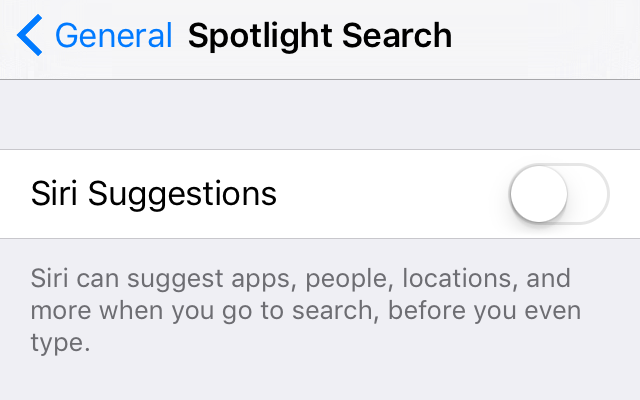
If you don't like seeing news on the new Siri Suggestions page, you can switch it off, along with Siri Contacts and App suggestions by accessing:

1. Settings.
2. General.
3. Spotlight Search
4. And then switching off 'Siri Suggestions'.


Featured Post

How To Update Your iPhone and iPad to iOS 10

iOS 10 is here! Here is how to update your device and get all those new features!  The first things you'll want to do before upda...