Showing posts with label networking. Show all posts

Apple Activates Their 5 Year Old Twitter Account


Since 2011 the @Apple handle on Twitter has gone unused. That is, until now! Apple has recently activated their Twitter account, just in time for their September 7th Media Keynote Event.

Apple has uploaded their logo in Black on a white background as their profile picture and have gone with their bokeh Apple logo photography that they used on their media invite, for their cover photo. 

While Apple has not officially tweeted anything yet to their 229K (and counting) followers, they do have a sponsored tweet, as seen below, that if you retweet, Apple will remind you to watch their Keynote on September 7th, before the event.     


How To Remove A Follower on Instagram Without Blocking Them


There are sometimes when you just don't want someone to follow you on Instagram anymore. Maybe you've outgrown your friendship with them, maybe you had a fight, maybe it's an ex-partner, or maybe you never liked them and only let them follow you out of feeling like you had too. Whatever the reason, you just don't want them to see your photos and videos anymore, but you don't really want to block them. You just don't want them to follow you. So how do you do this? Instagram doesn't have a 'force this person to unfollow me' button... Never fear! There is a trick you can do. And after you've done this, it'd almost seem like they unfollowed you!

Okay, so the title is a little misleading and that is because you have to block them. But wait! Don't hit that back button yet! Hear me out! The trick is still coming! Okay, ready for it? Just simply block the person and then unblock them. Whaaaat! Let me explain if you don't get it yet.

When you block someone on Instagram, they'll no longer be able to see your feed or search for your name. But they can still find you either on the desktop Instagram website, if they know your username, or on a mutual friends profile. But, even if they did, they won't be able to re-follow you. Now, if you think this is a little extreme, just unblock them after blocking them. It'll still cause the following connection between you two to break, but they will still afterwards be able to search for you on Instagram. It'll just appear as if they no longer follow you. Now, of course this means that they can try re-adding you again, if they don't 'get the message'. And they might question why all of a sudden 'they stopped' following you. So... maybe it's still best just to leave them blocked.

Now, in case you've never blocked anyone on Instagram before (lucky you), here's how to do so:

Step 1. Open the Instagram app. Obviously.

Step 2. Find and view their Profile Page. You can either search for their name, go through your follower list, likes on a photo, etc...

Step 3. In the top right hand corner, tap the 'three dots' button.

Step 4. Tap 'Block User' and then confirm.

Step 5. If you wish to then unblock them, while you're still on their page, tap the 'three dots' button again, and this time tap 'Unblock User' and confirm.


-> Download Instagram from the iOS App Store


Got an iOS or MacOS question that you want answered? Follow and tweet me on Twitter and your question just might get answered on this site! And maybe on Twitter, too.  


Instagram Revamps App With First Major Redesign In Years


Instagram is rolling out an update today which features a revamped icon and interface.

The app has gained a new simpler colorful icon and has ditched it's user interface's old color scheme for a 'white and black' one - to add more emphasis on the photos.


"Today we�re introducing a new look. You�ll see an updated icon and app design for Instagram. Inspired by the previous app icon, the new one represents a simpler camera and the rainbow lives on in gradient form. 

We�ve made improvements to how the Instagram app looks on the inside as well. The simpler design puts more focus on your photos and videos without changing how you navigate the app." - Instagram Blog.


There is also icon updates for Instagram's other apps; Layout, Boomerang and Hyperlapse.

What do you think of the new icon and interface colors? Do you give it a heart? Let us know in the comments.


> Instagram (version: 8.0) is available for download for free from the App Store


New Instagram App Update Removes Log Out Button

A new Instagram update has appeared in the App Store, version 7.19 on iOS. While the notes added with the update just talk about the previous added feature of video views, others fear that this update includes much worse - the dreaded new algorithm newsfeed that'll change your timeline from being chronological to what Instagram thinks you'll like best. Pretty much the same crap that Facebook does. 

While personally, I haven't seen the new algorithm take effect, there are some other noteworthy things about this Instagram update. 

Let's start with the good. Instagram has added a new line under usernames of those you don't follow in following and follower lists that'll tell you if anyone you know also follows this person. That a feature that can come in handy. 

Now onto the bad. This update could include the new algorithm, I'm not quite certain. Let me know in the comments if you've already seen the changes take effect. Although Instagram probably doesn't need an app update to change this. But here are some other reasons why you might not want to update so quickly.

It seems users are stuck logged in to their accounts! That's right, once you login and add an account, you can't log out without deleting the entire app off your device. You might say, 'but why would you want to log out?', yeah, true, but since Instagram has added the ability to have multiple accounts that are easily changeable from within the app, removing the log out button seems well let's just say, dumb. Also missing, along with the sign out of accounts buttons is the 'Clear search history' button. 

So, if you haven't already installed the latest Instagram update, maybe hold off for now?

UPDATE: The newest Instagram update (version 7.19.1) has fixed the issues mentioned in this post. 


Twitter Switches On New 'Best Tweets First' Algorithmic Timeline

Twitter Logo.
When it was announced, there was a out-roar from angry Twitter users who claimed that the new algorithmic timeline would be the end of Twitter. At first, the option was launch as an opt-in feature - but now, it seems that Twitter has switched on the new "best Tweets first" timeline for all users.

'Best Tweets first', is the Tweets that Twitter believes that you will care about the most and would likely engage with. When you login or open the app, these 'best Tweets' will be shown at the top of your timeline feed regardless of when they were posted.

For more detailed information about Twitter's timeline, click here.


How To Switch Off The New "Show me the best Tweets first" Algorithmic Timeline:

on iOS:

1. On your profile tab, tap the settings gear icon and select "Settings."

2. Select the account you want to change.

3. Under Timeline, tap "Timeline personalization."

4. Switch off "Show me the best Tweets first".


On Desktop / Laptop:

1. On the Twitter navigation bar, click your profile image, then select "Settings."

2. On The Account Settings page, scroll down to the Timeline under the Content heading.

3. Uncheck, "Show me the best Tweets first", then click "Save changes" and re-enter your password.


Instagram Rolling Out Multiple Account Option


Instagram is finally adding the option to easily switch between and manage multiple accounts from within the app. This is handy for those who have a private and public profile, or for people who also manage an account for their business.

The multiple account feature is slowly rolling out to users, so if you don't have it yet, don't worry, you'll get access to its soon! In the meantime, make sure you have updated to the latest version of the app, from the App Store.

To see if you have the multiple account feature, and to add new accounts:

1. Open the Instagram app.

2. Tap on your profile (the last tab button on the bottom right).

3. Then tap the settings gear in the top right hand corner.

4. Scroll right down to the bottom and between clear history and log out will be a new option that says "Add Account".

5. Tap "Add Account" then login with the new Instagram account. You can add multiple accounts.

6. To switch between accounts, on your profile, at the top next to your username will be a downwards facing arrow. Tap the arrow to show your added accounts. Tap on the account you want to change too.


Best Instagram App For iPad - Flow for Instagram - App Review


It's 2016 and can you believe that Instagram still doesn't have an app for the iPad?! They seem to be focused on mobile only � but the iPad does make for a great viewing platform. But it doesn't matter, because if all you want to do is view photos and videos from Instagram on your iPad, there is a great third-party-app available.

'Flow for Instagram' by Codegent Bangkok, is what the iPad app of Instagram should be. Works in both landscape and portrait, Flow features Instagram pictures nicely laid out in a scrollable grid.

Tap a picture to enlarge and show other details that you'd expect like likes and comments. You can even zoom in on pictures by pinching and share, send, or even save to your camera roll* (requires paid version of app).


The main layout of Flow features buttons for:

- Home: the photos and videos from who you follow.
- Your Likes: the pics/videos you've liked.
- Favorites: your bookmarked users, tags, and places.
- Suggested/top pics: like the explore posts on Instagram.
- And Search: where you can search for users, tags, and places.

You also have easy access to other Instagram features like viewing complete pages of who you are following, your followers, requests, search, etc...

In the upgraded paid version (Flow+) you can choose between a light or dark theme for the app. *comes with dark theme - must upgrade for light theme. Also add multiple accounts, hide users posts, get a extended home feed, save pictures and videos and more.

Because this is a third-party-app, you cannot upload images from to Instagram from Flow. But, this app does makes for a great way to view your Instagram feed on your iPad.

Flow for Instagram is available to download for free (with a paid "Plus+" version available through in-app purchase) for iPhone and iPad - from the App Store.

Take Mini Looping Videos with Instagram's New App 'Boomerang'

Image Credit: Boomerang from Instagram
Instagram has released a new app today called, 'Boomerang from Instagram', which almost to me seems to be the Instagram answer to Apple's new iPhone 6S feature, 'Live Photos'.

Taking selfies or filming others, Boomerang takes 10 rapid photos and stitches them together to form a short 4 second looping back and forth video. For best results, Boomerang suggests you film moving objects with this app.

Once you have taken your Boomerang video, you can share it to Facebook or Instagram directly from within the app. It'll also be saved to your Camera Roll.

Some tech specs for those wondering: the saved video file is a .MOV using the H.264 codec at the resolution of full HD, 1080 x 1920.

> Go to: Boomerang from Instagram on the App Store. 


Facebook Messenger Now On Apple Watch


Facebook Messenger is now available on Apple Watch! It was announced that Facebook would be making a Apple Watch App for Messenger at the September 2015 Apple Keynote Event.

Today's update now allows Messenger users to install the app on their Apple Watch running watchOS 2. After installing the Messenger update from the App Store, users will need to go to the Apple Watch app on their iPhone, find and tap the Messenger app in the list, then switch on "Show App on Apple Watch".

With Messenger on Apple Watch, users can now; view existing messages, reply to messages with preset text, your voice, Messenger Stickers, Your Location, or a Thumbs Up. You cannot, however, create a new conversation with someone who's not in your recent messages from Apple Watch.      

The Facebook Messenger [App Store Link] update for iOS 9 and watchOS 2 is now available in the App Store.  


YouTube Material Design Comes To iOS App Store


Google has today released its Material Design makeover for its YouTube app for iOS devices, months after the update was released for Android devices.

The new update brings a redesign that skewers away from the iOS 'look' of the previous version in favor of a Android look.

The redesign offers a new three part system: Home, Subscriptions, and Account, with the buttons in a huge red bar that unnecessarily takes up around one quarter of the screen (on iPhone).

Also included in the update is new in-app editing tool, making it easy for users to create and edit a video on the fly. There is also a new app icon which is the red YouTube play button logo on a white background, matching other Google apps on iOS.

The update is slowing roiling out to users in the App Store, even the redesign may not appear immediately after updating.

> YouTube for iOS is available for free from the App Store.


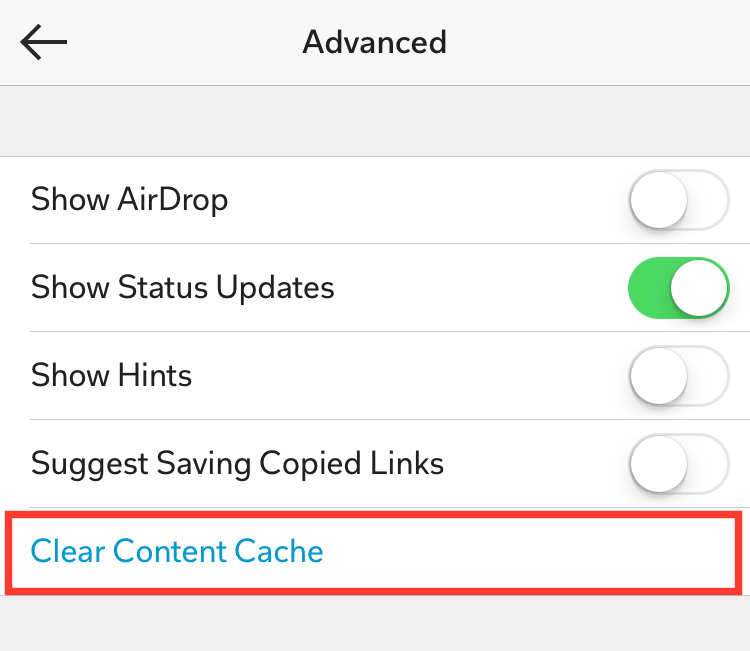
iOS Tip: How To Delete The Flipboard Temp Cache Files


Flipboard, the social network magazine app, temporarily stores downloaded images and other media files on your iPhone / iPad, which makes loading quicker. Apps in iOS usually handle space issues themselves and clear the cache files on a regular basics, however, there is also a way to manually do this.


1. Open the Flipboard app.

2. Tap your Account tab (the person silhouette).

3. Tap the Settings Gear button.

4. Tap 'Advanced'.

5. Tap 'Clear Content Cache'.


How To Disable Facebook Auto-Playing Videos - iOS App Tip


Facebook by default auto-plays the videos in your newsfeed. It can be annoying, and use data unnecessarily. If you have a limited data plan, you may definitely want to switch this off. Thankfully, there is a way to switch this 'feature' off.

How To Disable Facebook Auto-Playing Videos

1. Open the 'Facebook app'.

2. Tap the 'More' tab button.

3. Tap 'Settings'.

4. Tap 'Account Settings'.

5. Tap 'Videos and Photos'.

6. Now tap 'Autoplay' under the Video Settings heading.

7. Under 'Choose Your Own Autoplay Settings', select 'Never Play Videos Automatically'.

There is also another option If you do not want to choose to never automatically play. 'Smart Autoplay', will use Cellular and Wi-Fi data depending on certain criteria, like your country, mobile carrier, battery life, and data usage. Or, you can select to auto-play only when you are connected to Wi-Fi.


How To Get Twitter Notifications When A Certain User Tweets - iOS Tip


Want to know when a certain Twitter user posts a new tweet? It's really simple to set up. And just to clarify, this will not alert you every time anyone you follow updates, that'd be really annoying! You'll only receive a notification when the people you choose, tweet.

To get a notified when a particular Twitter user updates, on your iOS device (iPhone, or iPad):

1. Go to the persons profile in the Twitter application that you want the notification from.

2. Tap the Settings gear button

3. Now tap Turn on notifications

4. Confirm if asked. 

To switch off the alerts, go back to their profile, tap the settings button and the option to switch off the notifications will be there. 

If you liked this tip, follow @AppsReviewed1 on Twitter! 


Facebook Mentions: The App Only For 'Celebrities'


Facebook Mentions is the app for the famous, celebrities, or the verified. If you are not a actor, musician, or other popular famous figure with a verified Facebook page, stop reading now - as this app isn't for you!

Okay now that's it's only the important reading; you might of already heard of Facebook Mentions, as isn't a new app. It's been around since July 2014. It's only available on iOS, but that's ok - you're probably rich, so you should own an iPhone.

Anyway, a newly added feature to Facebook Mentions app, aims to rival other popular live streaming apps. Facebook Mentions is to be the 'Periscope' of the famous (like you). It will be your own little elite app.

The app gives only verified page users a way to live stream and chat with fans, see what topics are trending, share content across Facebook, Twitter, and Instagram, all with just the one app, and more...

In Facebook's own words:
"Mentions is a better way for actors, musicians and other influencers to stay in touch with their fans and the people and things they care about on Facebook."
And what about those regular people - the mere commoners? Where will they go to live stream to their small little audience? They will have to settle for either of the other popular live streaming apps like; Periscope or Meerkat.

Now popular person - go download the Facebook Mentions app - and live stream to your many fans!

-> View Facebook Mentions on the iTunes App Store.


Periscope How To Mute Notifications From A Broadcaster You're Following


Periscope is a great live video streaming app for iOS and Android (and on the web if you're just watching), developed by Kayvon Beykpour and Joe Bernstein - and later purchased by Twitter. 

On Periscope, users can stream live video to their followers, or watch the live streaming video from the people they follow. And to make sure you know when someone you follow is on - the app will send you a notification when they go live. Which is a great and handy feature. 

However, maybe you don't want to know when everyone you follow is live on Periscope. Maybe they live stream a few too many times a day, or you just don't want to watch the live stream. Or whatever the reason. It doesn't necessarily matter if you don't watch live, other than not being able to comment, because videos can be watched for 24 hours after - unless the broadcaster chooses otherwise.  

Thanks to a recent update to the Periscope app, you can now mute the alert when a certain broadcaster you follow, goes live.  It's really simple to do. All you need to do is go the users profile page.

1. Tap the last button on the right (the one the people), to go to the "People" section. 

2. Then tap to go to your profile (the silhouette in the circle on the top right corner). 

3. Tap "Following". 

4. Choose the user you want to mute. 

5. Then tap the bell icon with the line running through it, so it's highlighted in color. (Like in the image above). 

If you ever want to un-mute that user, just tap that bell icon again so the button goes back to white. 


YouTube Mobile App Gets Redesign & Vertical Video Fullscreen Playback

New YouTube Mobile App Redesign (Android) 
Today the YouTube mobile app has gotten a new 'material design' upgrade, with added new features. The new interface is available for Android users now, with the iOS update coming soon.

The new update features include a simplified three new tab interface; Home, Subscriptions, and Account.

Also, we may hate when people record video in vertical mode, but before it was even more frustrating trying to view the thin videos on a mobile device. Well, todays new update (iOS included) also adds support to play vertical videos in fullscreen mode.

Another new added feature to the redesigned YouTube app is a new set of video creation tools. You can now use the YouTube app to trim your footage, add filters, music, and upload - all from within the one app.

-> Read more about the new YouTube app on the Official YouTube Blog.  


Featured Post

How To Update Your iPhone and iPad to iOS 10

iOS 10 is here! Here is how to update your device and get all those new features!  The first things you'll want to do before upda...