New Apple TV Pre-Order Date Revealed


New details about the all new Apple TV have emerged today from Tim Cook, who was on stage and interviewed at the WSJDLive conference, held in Palm Springs, California.

The all new Apple TV will go on pre-order on Monday October 26th and will begin shipping out at the end of that week.

The new Apple TV features a new operating system called tvOS, Siri voice search, an App Store and a lot more.

The new Apple TV will come in either 32GB ($149) or 64GB ($199).

> View more details about the all new Apple TV on the Apple website.


Midnight Blue Sport Band on Stainless Steel Apple Watch Review


Apple last month released some new colors to the Sport Band Apple Watch range. One of the new colors is 'Midnight Blue'. This band was first seen by many on director J.J. Abrams at a Star Wars panel. 

Now, you can buy the Midnight Blue Sport Band with the new Aluminum Gold Apple Watch Sport, or on its own, separately. 

The Midnight Blue Sport Band lives up to its name - it is a dark colored blue, but light enough to distinguish it from the Black Sport Band and it's also appears much lighter in the daylight. Check out the unboxing and review on the video above with the Midnight Blue Sport Band attached to the Stainless Steel Apple Watch. 


iOS 9 Safari Relocates 'Find On Page' & 'Request Desktop Site' Buttons


iOS 9 has relocated a couple of features (or buttons), 'Find on Page' and 'Request Desktop Site', in Apple's web browser, Safari. These two buttons have been relocated to under the Share menu. To access this menu, tap the button with the arrow point up out of a square, in Safari.


Find on Page allows you to search for any text on the current webpage you are on. This is handy for when you are searching for a certain word or phrase on a page with a lot of writing. Simply type in the word you are looking for, then you can use the arrows to switch between every usage of that word on the page.

Request Desktop Site is for when you just aren't happy with the mobile version of a website and want to see the 'proper' desktop version. Sometimes web sites do not display all the features or buttons on a mobile site, so this feature again makes it helpful to change to the main web version. 

Other buttons that you can access from this menu include; Add to Favorites, Add Bookmark, Add to Reading List, Add to Home Screen (which places an app icon shortcut to the webpage on your home screen), Copy, Print, and any other third party app buttons that are available.    


iOS 9: Siri Contacts, Apps & News Suggestions & How to Switch Them Off

New in iOS 9 is a new page on your home-screen. By swiping to the right, users now have a new Search, Siri contacts and app suggestions and recommended news.

With Spotlight Search, you can search for pretty much anything! Search can now scan through your whole iPhone, apps, and you can even search the web.

Siri Suggestions offers users shortcuts to contacts and apps that Siri thinks you may want to access at that time of the day. Siri looks for habits, so it can better assist you and become precognitive. For example if you open Facebook every morning around the same time, Siri may notice this and offer the Facebook app to you as a suggestion at that same time the next day.

Then there is News. Siri can also now suggest news articles that it thinks you'd like to read. Clicking a news article will open it up in the new iOS News app. In the News app, you can customize the content to the topics (and news sources) that you like to read about.

These new shortcuts like accessing apps, contacts, and even reading and catching up on the news may be more convenient for users, but I can see that maybe not everyone would like it. Suggestions for apps or contacts might be useful, but having news on your iPhone home screen can make your iPhone seem a little less personal. If you'd like to keep the news in the app, unfortunately you can't just switch off news. You have to either switch off all Siri Suggestions or leave them all on. If you switch off Siri Suggestions, the new page will still stay on your iPhone, however it will only contain Search.

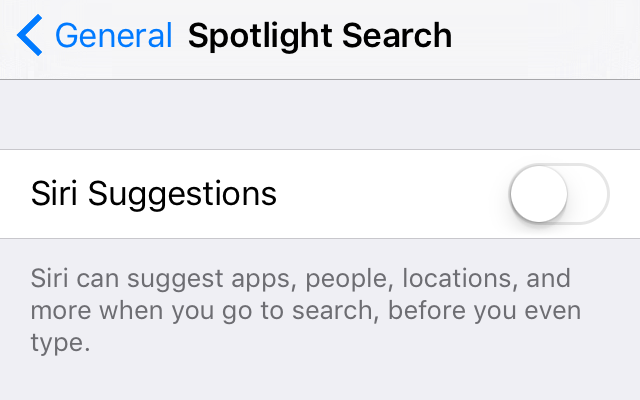
If you don't like seeing news on the new Siri Suggestions page, you can switch it off, along with Siri Contacts and App suggestions by accessing:

1. Settings.
2. General.
3. Spotlight Search
4. And then switching off 'Siri Suggestions'.


Watch Jony Ive & J.J. Abrams Talk 'Inventing Worlds in a Changing One'


From Vanity Fair and moderated by the Academy Award-winning producer Brain Grazer, watch Apple's Chief Design Officer Jony Ive and director of the new movie Star Wars Episode 7: The Force Awakens, J.J. Abrams, talk in a conversation about 'Inventing Worlds in a Changing One'.  


Add Custom Vibrations To Your Alarms - New in iOS 9


New in iOS 9 is the ability to change to different vibration alerts to your Alarm clock. 

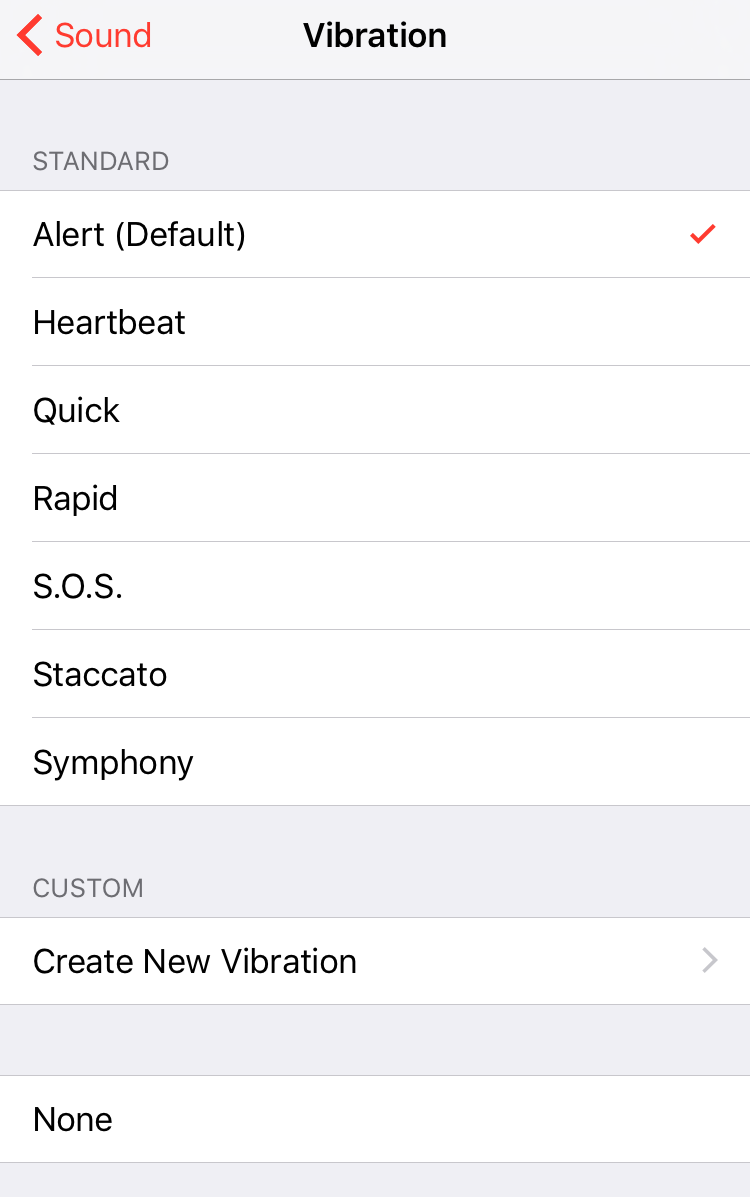
To add a vibration alert, tap to edit your alarm, then tap 'Sound', then 'Vibration'. 

There are a few different types of vibration alerts, including; the default 'Alert', 'Heartbeat', 'Quick', 'Rapid', 'S.O.S', 'Staccato', and 'Symphony'. 

You can also record and create your own custom vibration alert. 


New In iOS 9 - Quickly Delete Alarms By Swiping Across


A new feature added into iOS 9 is the ability to quickly delete alarms you have made.

Before it was a few taps, but now, you can simply delete Alarms by swiping across to the left then tapping "Delete".


How To Record Your iPhone or iPad Screen - iOS 9 / OS X Tip


If you have a Mac, Apple's program Quicktime makes it easy for you to record your iPhone or iPad's screen. The recorded file will be a MOV file with the resolution of your iPhone / iPad's screen and in the rotating that you recorded in.

1. To record your iPhone or iPad's screen, connect your device via the lightning cable to your Mac computer.

2. Open the app, Quicktime on the Mac.

3. On the Mac menu bar for Quicktime, click; 'File' then 'New Movie Recording'.

4. Next to the record button, click the downwards arrow.

5. Select under heading 'Camera' your connected iPhone or iPad device.

6. You cannot record sound directly from your iOS device, however, you can choose to record sound using your iOS device or your Mac under the 'Microphone' heading.

7. Press the record button when you are ready to begin, and then then stop when you want to stop recording. You can then save your recording by clicking 'File' then 'Save'.


Facebook Messenger Now On Apple Watch


Facebook Messenger is now available on Apple Watch! It was announced that Facebook would be making a Apple Watch App for Messenger at the September 2015 Apple Keynote Event.

Today's update now allows Messenger users to install the app on their Apple Watch running watchOS 2. After installing the Messenger update from the App Store, users will need to go to the Apple Watch app on their iPhone, find and tap the Messenger app in the list, then switch on "Show App on Apple Watch".

With Messenger on Apple Watch, users can now; view existing messages, reply to messages with preset text, your voice, Messenger Stickers, Your Location, or a Thumbs Up. You cannot, however, create a new conversation with someone who's not in your recent messages from Apple Watch.      

The Facebook Messenger [App Store Link] update for iOS 9 and watchOS 2 is now available in the App Store.  


How To Change Siri's Language, Accent, & Gender in iOS 9


In iOS 9 users have a little more choice with their personal assistant, Siri. Now you can have a different accent without having to change any type of region settings. You can also change Siri's language, and gender.

To customize Siri's voice and other settings in iOS 9 - follow these steps:

1 - Open the 'Settings' app.

2 - Tap 'General'.

3 - Then tap 'Siri'.

4 - Here you have a selection of options:

Hey Siri: Allows you to speak to Siri without pressing a button, when your device is plugged into a power source.

Language: Choose what language you want Siri to understand and speak in. There are a wide option of English variations and other languages including; German, Italian, Japanese, Korean, Russian, French, and many more.

Siri Voice: here you can change Siri's accent. Gender: You can make Siri's voice either male or female.

Voice Feedback: Choose whether Siri provides answers with voice or text.

My Info: This is where you tell Siri who you are, so Siri will know things like your name, or partner, and other family members. This comes in handy if you want Siri to perform a voice command like: "Siri, call my wife". Related people can be add in your contact profile.


YouTube Material Design Comes To iOS App Store


Google has today released its Material Design makeover for its YouTube app for iOS devices, months after the update was released for Android devices.

The new update brings a redesign that skewers away from the iOS 'look' of the previous version in favor of a Android look.

The redesign offers a new three part system: Home, Subscriptions, and Account, with the buttons in a huge red bar that unnecessarily takes up around one quarter of the screen (on iPhone).

Also included in the update is new in-app editing tool, making it easy for users to create and edit a video on the fly. There is also a new app icon which is the red YouTube play button logo on a white background, matching other Google apps on iOS.

The update is slowing roiling out to users in the App Store, even the redesign may not appear immediately after updating.

> YouTube for iOS is available for free from the App Store.


How To Hide 'Frequently Visited Sites' In Safari on OS X El Capitan


Safari 9.0 has added a way to hide those frequently visited sites on the Favorites page.

The favorites page in Safari displays your favorite bookmarks with big icons. After surfing the web for a while, frequent sites that you have visited will also be listed.

To hide frequently visited sites in Safari 9.0, right click on the Favorites page, then unselect "Show Frequently Visited Sites".


How To Use Split View in OS X El Capitan on Mac

New in OS X 10.11 is feature Split View, which allows you to focus on two apps on your screen, side-by-side in full screen mode. 

To activate Split View mode in OS X El Capitan, press and hold the Green traffic light button on the Apps windows, wait a second, then drag the window to the side of the screen you want the app be on. You can then choose which other app you want on the other side of the screen. 

In Split View, you can drag the middle line to give more space to the left or right app. To exit Split View mode, press the Green button again.


Shooty Skies - New Flying Game From Developers of Crossy Road


From two of three of the developers that brought you Crossy Road, comes a new game to become your next addiction; Shooty Skies - Endless Arcade Flyer By Mighty Games. 

Shooty Skies shares a lot of similarities to Crossy Road in terms of game graphics, set up, and amount of collectable / playable characters. 

Shooty Skies is a endless flying game where you control a character and plane, shooting down enemies. The game features a heap of characters to unlock from the prize machine. Wacky enemies like; flying arcade machines, laptops, robots, owls, a big mouth, video of a cat on a computer screen, and a lot more.


You control your character by dragging around your finger on the screen, with an auto fire attacking the enemies. There is also temporary (2 hour) weapon upgrades that you can gain by watching an advertisement. 

Like with most flyer games, the hardest part of Shooty Skies is dodging all the projectiles. 

Shooty Skies is free to download and play (with in-app purchases available) for iOS devices.  


Auto Hide & Show Mac Menu Bar in OS X 10.11 El Capitan

A new feature added in OS X 10.11 El Capitan is the ability to auto hide and show the Mac Menu bar. Hiding the Menu bar will give you more vertical space and a more minimal look on your desktop. If you rarely use the menu bar, you should consider hiding it. Although, it in my opinion, if you've used mac for some time, it looks weird without the menu bar. 


To hide the Mac's Menu Bar in OS X 10.11 El Capitan:

1. Open System Preferences

2. Click General

3. Under Appearance, check on "Automatically hide and show the menu bar". 


Featured Post

How To Update Your iPhone and iPad to iOS 10

iOS 10 is here! Here is how to update your device and get all those new features!  The first things you'll want to do before upda...